
Introduction to Salesforce Integration
Salesforce integration allows you to connect your CRM data with Meera campaigns, enabling:
- Effortless Synchronization: Automate the exchange of customer and lead data between Salesforce and Meera.
- Improved Workflow Management: Reflect real-time updates on both platforms.
- Custom Configuration: Tailor the integration to meet your specific business needs, by selecting specific record types, mapping your desired fields, and applying filtering rules.
1. Connecting Salesforce to Meera
Establish a secure connection between Salesforce and Meera to enable data exchange.
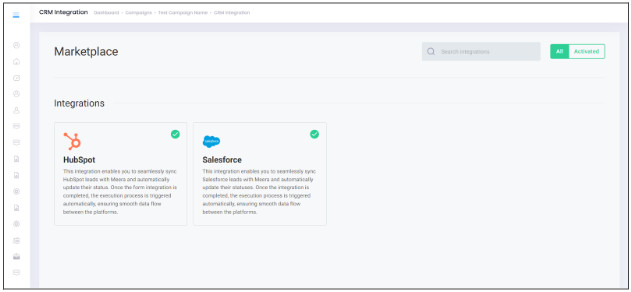
1. Access the Salesforce Integration page- Login into the Meera dashboard, navigate to Campaigns located on the left-hand side and select the campaign where you want to set up the integration.
- Click the Connectors button (+ icon) and choose CRM Integrations.

- Select Salesforce from the list.
-
- Click on Connect, then sign into Salesforce’s login page.
- Click on Connect, then sign into Salesforce’s login page.
-
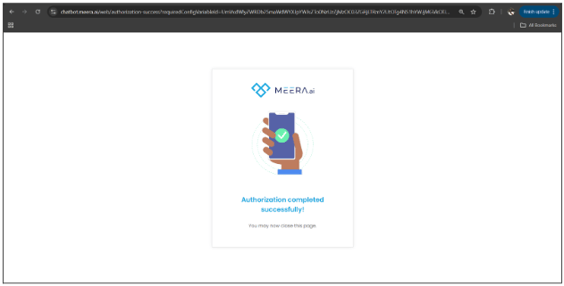
- After entering your Salesforce credentials and granting access, you'll reach the confirmation screen as shown above, which you can then close!
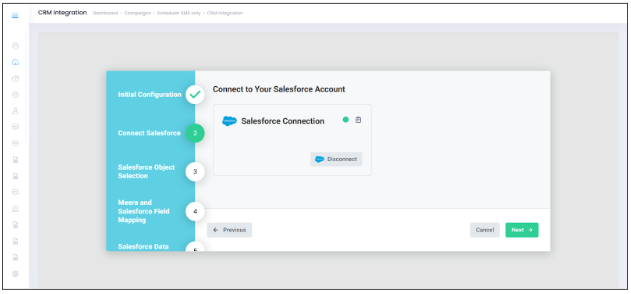
3. Connection Confirmation
A green icon and success message will indicate that the connection is active and secure.
2. Selecting Salesforce Object for Synchronization
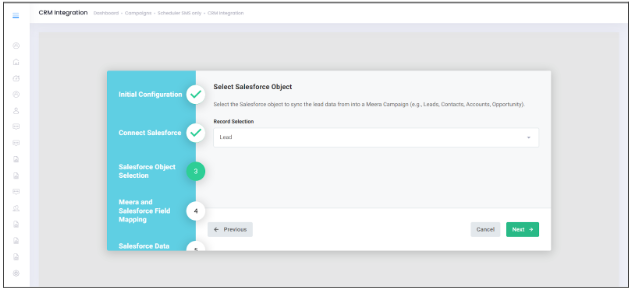
Here you'll choose the type of object to sync with Meera.
- Navigate to the Record Selection interface.
- Choose the record types you wish to sync. Most common are:
- Leads: Use for capturing potential customers.
- Contacts: Use for existing customer details.
- Opportunities: Use for sales progress and deals.
- Click Next to save your selection.
3. Field Mapping Between Meera and Salesforce
Here you'll select which fields attached to your chosen Salesforce object will be linked to Lead fields in Meera throughout the sync.
- Open the field mapping interface, which will display a side-by-side view of fields in Salesforce for you to map to their counterparts in Meera :
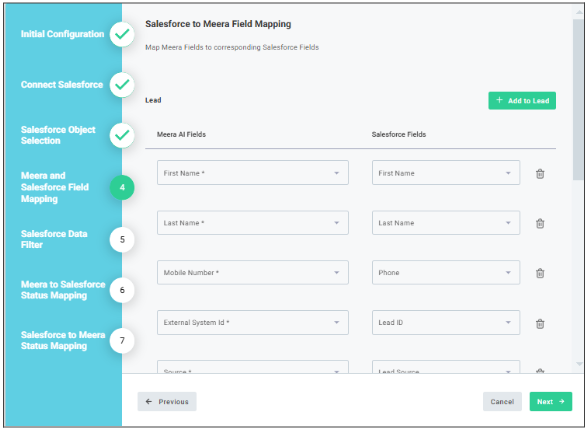
- By default, all required (*) fields will be pre-selected for mapping. Please be sure to map all of them! Any unmapped fields will need to be assigned hardcoded static values in the bottom section (see below).
- For any required fields that don't have a robust data source in Salesforce, or for any other fields that you simply want to apply a static value to, use the Map Meera Fields to Static Values section to input values that will be applied across all imports (e.g., Country Code = "US").
Note: the Salesforce field mapped to Lead Status will control which field gets updated as leads progress through statuses in Meera (see here)
4. Setting Filters for Lead Import
Apply filters to sync only the records that meet specific criteria, such as lead status, and lead source.
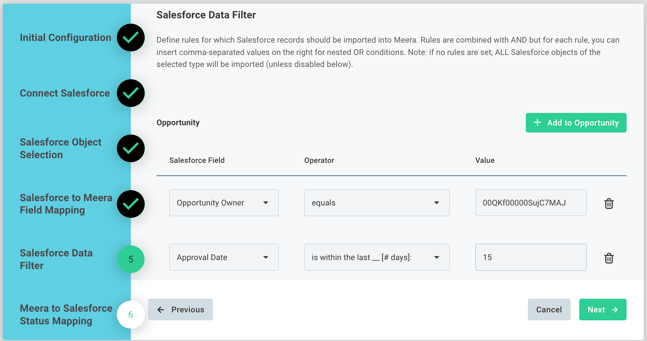
Establish specific lead criteria to determine which leads are synchronized to a particular Meera campaign. Each individual line is applied as an AND condition; only leads matching every single rule listed will be passed on to Meera. You can set multiple OR matches on each line by separating all possible values by a comma.
Filter Operators with Examples
- Contains / Does not contain
- Check if a field contains or does not contain a specific value. This is NOT case sensitive.
- Examples:
- Filter Rule: "LeadSource" | contains | "Web, Facebook"
- Field Value: "LeadSource"="Facebook" → true; passes filter
- Field Value: "LeadSource"="Web" → true; passes filter
- Field Value: "LeadSource"="TikTok" → false; does not pass filter
- Filter Rule: "LeadSource" | does not contain | "Instagram"
- Field Value: "LeadSource"="Facebook" → true; passes filter
- Filter Rule: "LeadSource" | contains | "Web, Facebook"
- Starts with
- Check if a field starts with a specific value. This is NOT case sensitive.
- Example:
- Filter Rule: "Full Name" | starts with | "John"
- Field Value: "Full Name"="John Doe" → true; passes filter
- Filter Rule: "Full Name" | starts with | "John"
- Equals / Does not equal
- Check if a field is exactly (not case sensitive) equal or not to a specific value
- Examples:
- Filter Rule: "Status" | equals | "Active"
- Field Value: "Status"="Inactive" → false; does not pass filter
- Filter Rule: "Status" | does not equal | "Inactive"
- Field Value: "Status"="Active" → true; passes filter
- Filter Rule: "Status" | equals | "Active"
- Is greater than / Is less than
- Check if a field is greater/less than a specific value. These filter rules will only work with numerical values and dates.
- Example:
- Filter Rule: "Age" | greater than | "30"
- Field Value: "Age"="25" → false; does not pass filter
- Filter Rule: "Age" | greater than | "30"
- Is greater than or equal to / Is less than or equal to
- Check if a field is greater/less than or equal to a specific value. These filter rules will only work with numerical values and dates.
- Example:
- Filter Rule: "Date of entry" | is less than or equal to | "2025-11-15"
- Field Value: "Date of entry"="2025-11-15" → true; passes filter
- Filter Rule: "Date of entry" | is less than or equal to | "2025-11-15"
- 🚀🆕 Is within the last __ / Is not within the last __
- Checks if a date field is/isn't or within the last __ number of days. This filter rule will only work with fields that are dates/date+time, and a whole integer # of days.
- Example:
- Filter Rule: "Date of entry" | is not within the last | "20"
- Field Values: "Date of entry"="2025-09-30" &
today="2025-11-13" → true; passes filter
- Field Values: "Date of entry"="2025-09-30" &
- Filter Rule: "Date of entry" | is not within the last | "20"
- 🚀🆕 Is within the next __ / Is not within the next __
- Checks if a field is less than or equal to a specific value. As with the above rule, this filter rule will only work with integers and dates.
- Example:
- Filter Rule: "Next scheduled appt" | is within the next | "30"
- Field Values: "Next scheduled appt"="2026-05-12" & today="2026-04-23" → true; passes filter
- Filter Rule: "Next scheduled appt" | is within the next | "30"
⚠️ Important note about date-related filters: All filtering rules listed above are evaluated when a record is created or updated. If a record field enters a date range without being updated (i.e. simply due to time passing), the record will not be imported automatically. In these special cases, we have the ability to set up a special custom cron job to check periodically for new record matches; please reach out to integrations@meera.ai for further info.
🚀🆕 You can also disable imports from this window via the Enable Importing Leads into Meera toggle. There are a few scenarios where this may be helpful:
- You want to temporarily disable imports without losing other automations (e.g. Lead Status Sync, Lead Closure, etc).
- You want to get the integration fully set up, but don't want imports to start flowing just yet
- You plan to handle imports separate from this integration or using your own custom Salesforce Flows. Please do keep in mind that any filtering rules set here will still be applied on top of any custom Flows.
5. Mapping Meera Statuses to Salesforce Statuses
Align lead statuses in realtime between Meera and Salesforce for consistent lifecycle tracking.
- Access the status mapping interface shown below.
- Match Meera statuses with Salesforce statuses. The picklist/dropdown shown on the right will correspond to the possible values for the field mapped to Lead Status in Step 3.
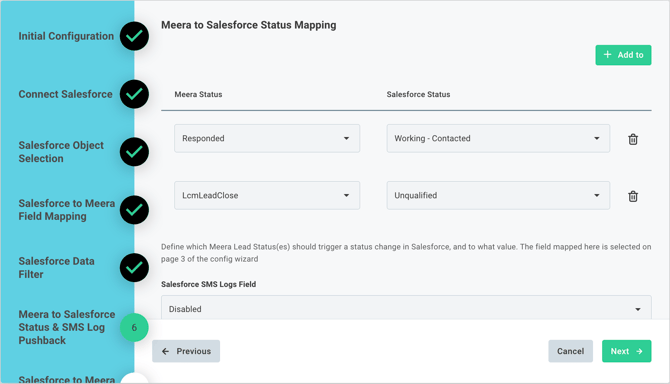
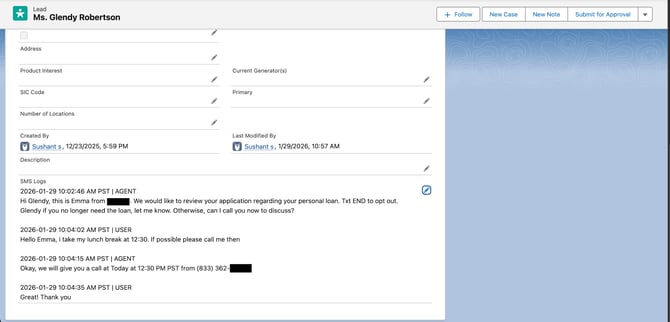
- 🚀🆕 Optional: Select the desired Salesforce field for pushing SMS message logs back to Salesforce. Only fields that are formatted as Long Text Area in Salesforce will be shown. Example below of how the logs will be formatted when pushed to Salesforce:
- Click Next to save your selections.
ℹ️ For a full explanation of the various Meera Statuses, please see here.
6. Salesforce to Meera Status Mapping
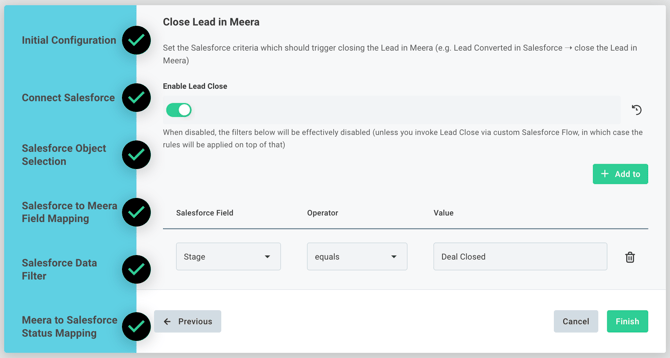
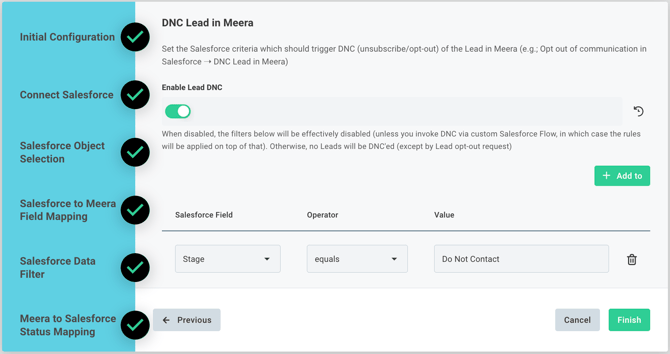
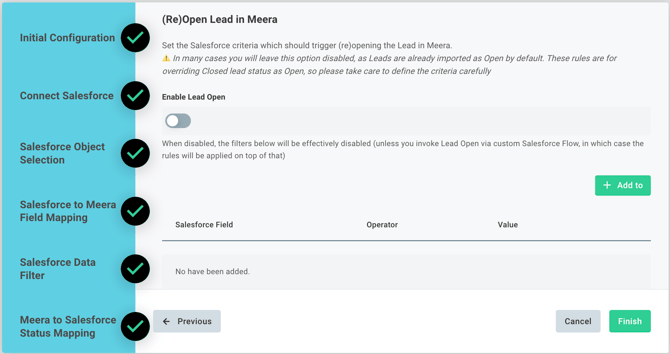
Here you can set up criteria in Salesforce that will trigger Lead actions in Meera: Lead Close, Lead DNC, or Lead Open. The rule functionality set here works the same as that for Lead Import
-
Lead Close:
-
Salesforce Criteria: Identify the rules that should trigger Lead Closure (i.e. terminate all chat agent interaction).
- Do note that the option should be toggled on unless you plan on invoking Lead Close via your own custom Salesforce Flow.
-
- Lead DNC (Do Not Contact)
- Salesforce Criteria: Determine which leads in Salesforce should be fully unsubscribed from any further messaging.
- Do note that the option should be toggled on unless you plan on invoking DNC via your own custom Salesforce Flow.
- Lead (Re)Open:
- Salesforce Criteria: Determine which criteria in Salesforce should trigger reopening of closed leads in Meera.
- In many cases, this option will be left disabled unless you have a specific need to reengage with leads that were previously not interested. Do be sure to toggle the option on unless you plan on invoking Open Lead via your own custom Salesforce Flow.
7. Synchronizing Data
Trigger the synchronization process after confirming all configurations.
- Click Finish to finalize all settings and turn the integration on.
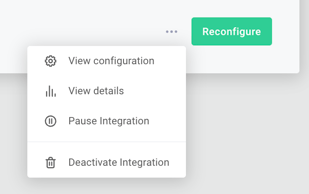
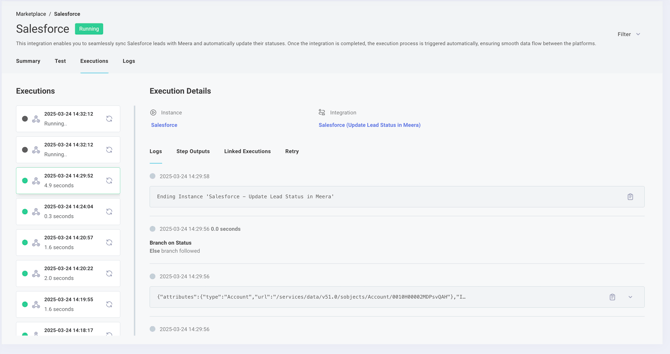
⚠️ Note: if Enable Importing is toggled on, any lead meeting the criteria set will immediately be pulled from Salesforce. - Monitor progress in the Execution Logs, which you can access by clicking the View Details button.
Key Tip:
Use execution logs to identify and troubleshoot errors during synchronization.
8. 🚀🆕 Advanced: Using Your Own Custom Salesforce Flows
In some instances, the exact conditions under which you want leads imported (or closed/opened/DNC'ed) may be too complex for our built-in filtering rules. In this case you can set up your own Flows! Upon deploying the integration above, Outbound Messages will be created in your Salesforce instance that you can call via Record-Triggered Salesforce Flow. Below, we walk through an example setup of this.
👉 Kindly note that, while we’re always happy to offer guidance and point you in the right direction, Salesforce Flows are an advanced feature, so we highly recommend having someone on your team who’s already comfortable building and maintaining them handle the implementation. 😊
-
In your Salesforce Settings, confirm that the Outbound Messages were successfully deployed to your Salesforce instance:
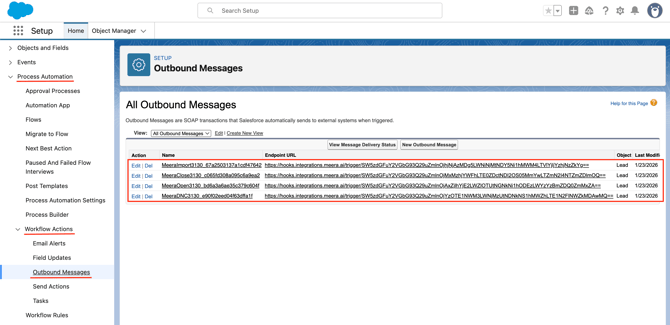
Do note, if you've enabled the integration for multiple Meera Campaigns, you'll see Outbound Messages for those Campaigns as well! - Navigate to Flows and select New Flow:
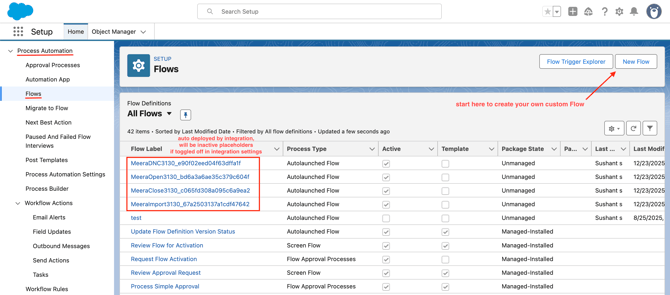
You should also see existing flows set up by the integration. These flows will show as Active but they will be functionally inactive unless you've toggled them on in Step 4 & Step 6 above. - Select Record-Triggered Flow:
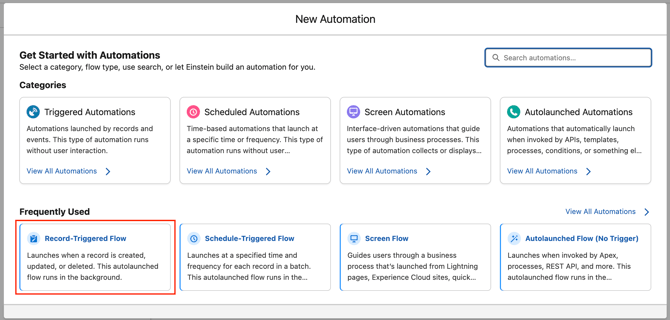
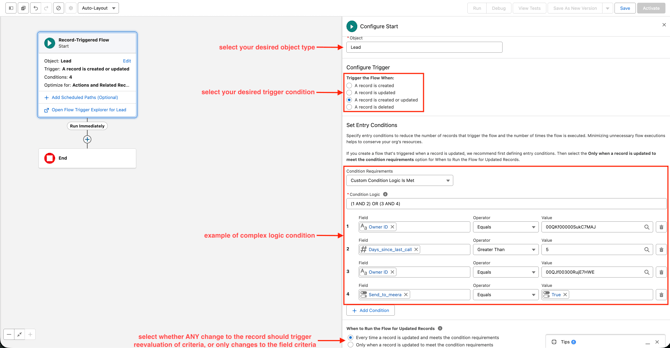
- Select your desired Salesforce Record type and desired triggering criteria:
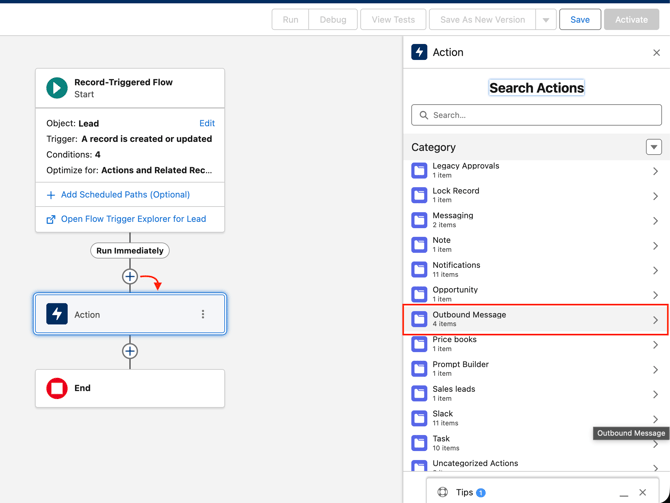
- Once you have all the desired elements of your Flow in place, add an Action step, with Outbound Message as the desired action:
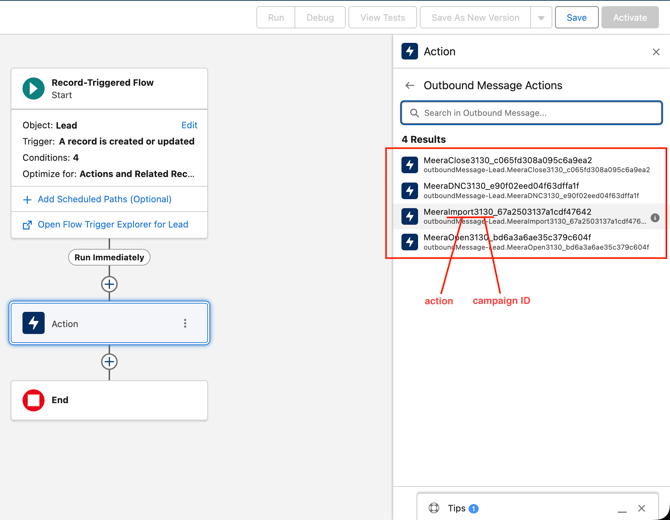
- Select which action you want to perform (Import/Close/etc), as well as your desired Meera Campaign, if you have multiple where you've deployed the above integration:
- Save and name your flow.
- Activate your flow.
You can follow these same steps for creating as many flows as your want that invoke our Outbound Messages.
If you need any further assistance or have any additional questions please get in touch with us at help@meera.ai