
Introduction
Our GoHighLevel integration allows you to connect your CRM data with Meera campaigns, enabling:
- Effortless Synchronization: Automatically exchange customer and lead data between GHL and Meera.
- Improved Workflow Management: Push real-time status updates between platforms.
- Custom Configuration: Tailor the integration to meet your specific business needs by applying desired filtering and mapping the sync to fit your data.
Step One: Connecting GoHighLevel to Meera
Establish a secure connection between GHL and Meera to enable data exchange.
- Login into the Meera dashboard, navigate to Campaigns on the left-hand side and select the campaign where you want to set up the integration.
- Click the Connectors button (+ icon) and choose CRM Integrations.
- Select GoHighLevel from the list.
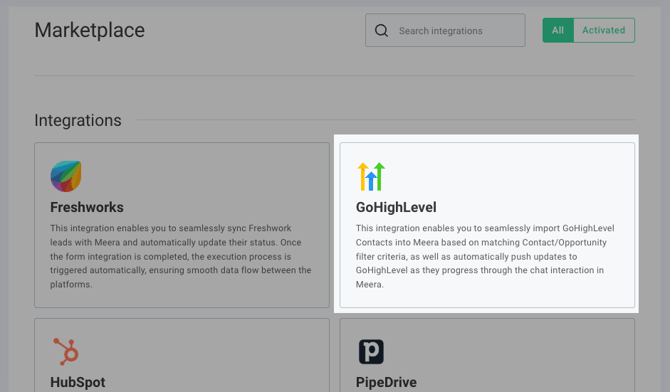
Authenticate your GoHighLevel instance:
- Click on Connect, then sign into GoHighLevel's OAuth login page.
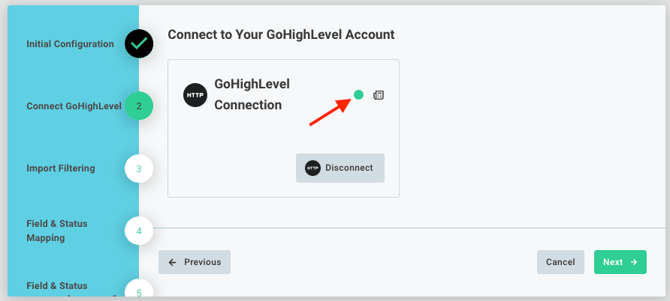
- After entering your GoHighLevel credentials and granting access, you'll reach a confirmation screen which you can then close. A green icon as shown below will indicate that a secure connection has been established.
Step Two: Setting Filters for Lead Import
Here you'll choose what filters to apply when importing GoHighLevel contacts
Click Add to Filters, then select the field, operator, and value for each rule.
Filters are split between Contact & Opportunity so you can set filtering rules for both. All rules are combined with AND logic. However, you can specify multiple values separated by commas, and any values on that line will be matched using OR logic.
👉 Since Contacts can be associated with multiple Opportunities, the filter rules set here will check for any Opportunties matching all rules.
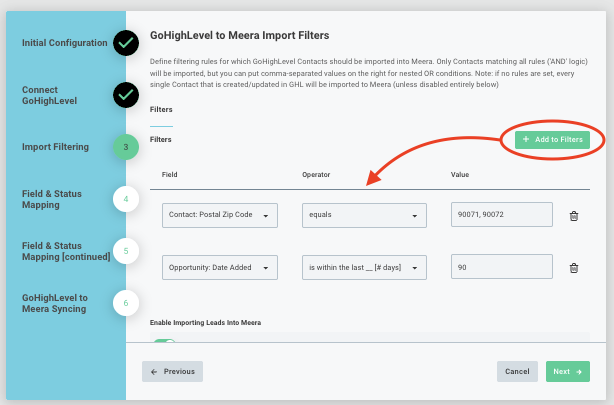
⚠️ Important Note: If you set no filters at all, every single contact that is created or updated in GoHighLevel will be imported.
Filter Operators with Examples
- Contains / Does not contain
- Check if a field contains or does not contain a specific value. This is NOT case sensitive.
- Examples:
- Filter Rule: "LeadSource" | contains | "Web, Facebook"
- Field Value: "LeadSource"="Facebook" → true; passes filter
- Field Value: "LeadSource"="Web" → true; passes filter
- Field Value: "LeadSource"="TikTok" → false; does not pass filter
- Filter Rule: "LeadSource" | does not contain | "Instagram"
- Field Value: "LeadSource"="Facebook" → true; passes filter
- Filter Rule: "LeadSource" | contains | "Web, Facebook"
- Starts with
- Check if a field starts with a specific value. This is NOT case sensitive.
- Example:
- Filter Rule: "Full Name" | starts with | "John"
- Field Value: "Full Name"="John Doe" → true; passes filter
- Filter Rule: "Full Name" | starts with | "John"
- Equals / Does not equal
- Check if a field is exactly (not case sensitive) equal or not to a specific value
- Examples:
- Filter Rule: "Status" | equals | "Active"
- Field Value: "Status"="Inactive" → false; does not pass filter
- Filter Rule: "Status" | does not equal | "Inactive"
- Field Value: "Status"="Active" → true; passes filter
- Filter Rule: "Status" | equals | "Active"
- Is greater than / Is less than
- Check if a field is greater/less than a specific value. These filter rules will only work with numerical values and dates.
- Example:
- Filter Rule: "Age" | greater than | "30"
- Field Value: "Age"="25" → false; does not pass filter
- Filter Rule: "Age" | greater than | "30"
- Is greater than or equal to / Is less than or equal to
- Check if a field is greater/less than or equal to a specific value. These filter rules will only work with numerical values and dates.
- Example:
- Filter Rule: "Date of entry" | is less than or equal to | "2025-11-15"
- Field Value: "Date of entry"="2025-11-15" → true; passes filter
- Filter Rule: "Date of entry" | is less than or equal to | "2025-11-15"
- Is within the last __ / Is not within the last __
- Checks if a date field is/isn't or within the last __ number of days. This filter rule will only work with fields that are dates/date+time, and a whole integer # of days.
- Example:
- Filter Rule: "Date of entry" | is not within the last | "20"
- Field Values: "Date of entry"="2025-09-30" &
today="2025-11-13" → true; passes filter
- Field Values: "Date of entry"="2025-09-30" &
- Filter Rule: "Date of entry" | is not within the last | "20"
- Is within the next __ / Is not within the next __
- Checks if a date field is/isn't or within the next __ number of days. As with the above rule, this filter rule will only work with integers and date fields.
- Example:
- Filter Rule: "Next scheduled appt" | is within the next | "30"
- Field Values: "Next scheduled appt"="2026-05-12" & today="2026-04-23" → true; passes filter
- Filter Rule: "Next scheduled appt" | is within the next | "30"
Important note about date-related filters: All filtering rules listed above are evaluated when a record is created or updated. If a record field enters a date range without being updated (i.e. simply due to time passing), it will not be imported automatically.
Enabling Imports
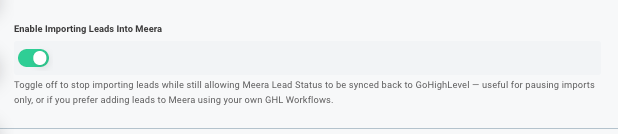
As shown above, you can enable or disable imports via the Enable Importing Leads into Meera toggle. This may be helpful in a few scenarios:
- You want to temporarily disable imports without losing other automations (e.g. Lead Status Sync, Lead Closure, etc).
- You want to get the integration fully configured, but don't want imports to start flowing just yet.
- You plan to handle imports separate from this integration or using your own custom GoHighLevel Flows. If you plan on doing this, you can remove all the field mappings in Step Three below and continue. Please also keep in mind that any filtering rules set on this screen will still be applied on top of any custom workflows.
Step Three: Field Mapping from GHL to Meera
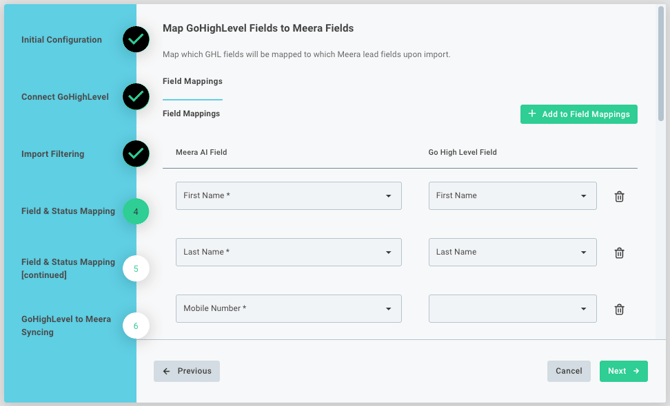
Here you'll select which fields attached to your GoHighLevel Contacts will be linked to Lead fields in Meera upon import.
- Open the field mapping interface, which displays a side-by-side view of fields in GoHighLevel and their counterparts in Meera:
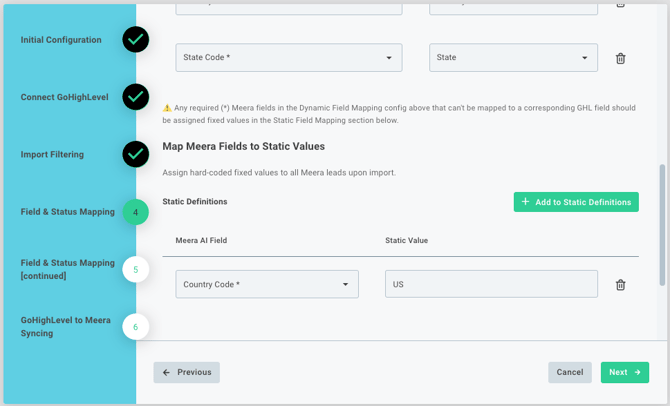
- By default, all required (*) fields will be pre-selected for mapping, and several fields will be auto-mapped to standard fields in GoHighLevel. Kindly make sure the right GHL fields are selected. Note: Any required Meera fields that can't be mapped to some reliably populated GoHighLevel field should be assigned hardcoded static values in the bottom section (see below).
- For any required fields where you want or need to apply a static value across all Leads, use the Map Meera Fields to Static Values section to input values that will be applied across all imports:
Step Four: Setting Meera Lead Status syncing options
(Optional) Apply filters to sync only the records that meet specific criteria, such as lead status and lead source.
Selecting the target GHL Field for Lead Status
-
In the section shown below, you’ll choose if and where Meera Lead Status updates should be synced to GoHighLevel as leads progress through the lifecycle of the chat agent interaction. You can choose between 4 different options:
-
Contact Tags
-
Opportunity Pipeline + Stage
-
Contact Custom Field*
-
Opportunity Custom Field*
-
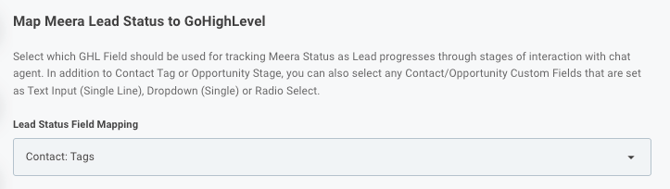
* only fields that are set as Text Input (Single Line), Dropdown (Single) or Radio Select are compatible with this mapping functionality; only those fields will be shown.
-
After selecting the target GoHighLevel field, you'll be given the option to map specific Meera Statuses** to corresponding values in GHL. Examples shown below. When choosing Pipeline+Stage, a dropdown custom field, or a radio custom field you'll be given a picklist of options. When choosing Tags or a single line text custom field, you'll be given a freeform text box. To add new mappings, simply click on Add to Mapped Statuses.
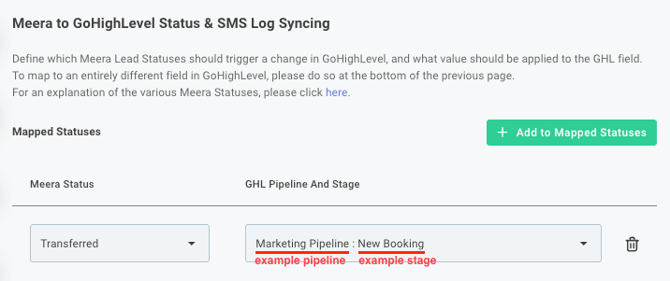
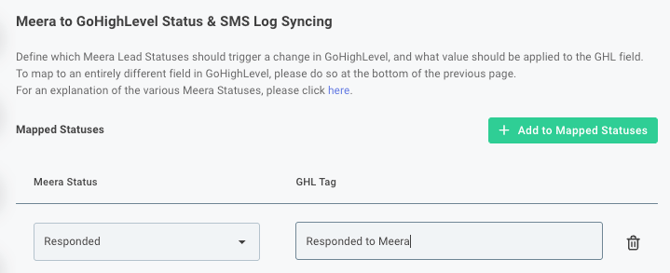
**For a full list and explanation of the various Meera Statuses, see here.
Step Five: Mapping SMS Logs and Opt-Outs to GoHighLevel
(Optional) Sync lead DNC status and SMS chat logs from Meera to GHL
Mapping DND Status
By default, whenever a lead requests to be opted out from SMS communications (for example, texting STOP to the chat agent) they'll be fully unsubscribed in Meera from all future SMS messages. We'll also push that DND status to GoHighLevel for Text Messages as shown below:
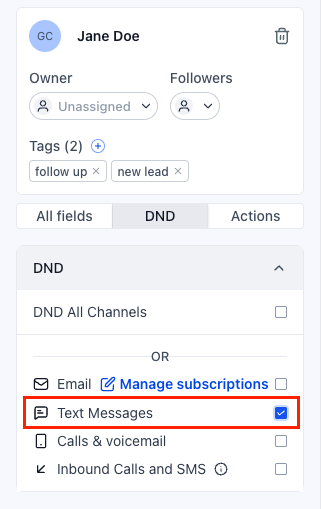
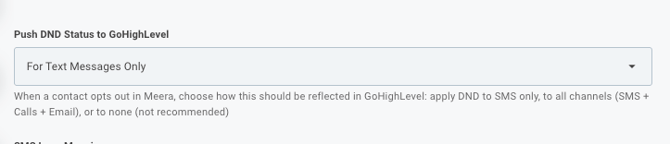
However, in some cases, you may want this to be pushed to GoHighLevel as DND All Channels instead. That setting can be updated here:
Mapping SMS Logs
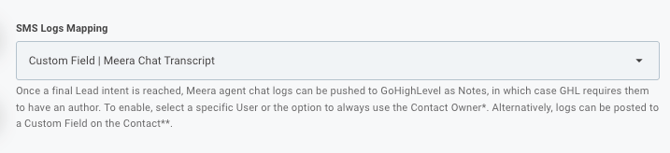
Whenever a chat interaction with our agent has fully wrapped up and the lead is marked as Closed, we can optionally send a chat transcript that shows the entire text message log between the agent and the user.
There are 2 options available:
- Publish the logs as a Note on the Contact. When selecting this option, you'll also need to pick which user account in your GoHighLevel account should be used, since GHL requires all Notes to be linked to a user. You may choose either:
- a specific user account (you'll see all your user accounts listed)
- the owner of the contact (only works if all Contacts have owners)
- Publish the logs to a Custom Field on the Contact. Any contact fields that have been configured as Text Input (Multi Line) will be shown as possible options.
Step Six: GoHighLevel to Meera action triggers
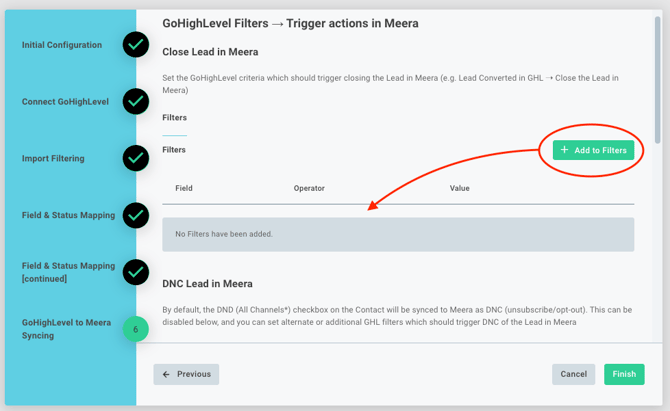
(Optional) Here you can set up criteria in GoHighLevel that will trigger Lead actions in Meera: Lead Close, Lead DNC, or Lead Open. For each one, if no filters are set, the option will remain disabled.
Lead Close
In some scenarios, you might want the Meera chat agent to cease all communications with the user for this particular Campaign (for example, upon lead conversion or disqualification). Here you can set those filters, following the same format as used by the Lead Import:
Lead DNC
Similar to the Lead Close action above, here you can set filters that should fully unsubscribe the user from all future SMS communication across all Meera Campaigns. This action is designed to be permanent, so if you intend to reversibly stop communications, we recommend using Lead Close instead.
Additionally, we can unsubscribe the Lead in Meera whenever the DND All Channels checkbox is checked for that contact, which is toggled on by default as shown below. Note: due to limitations with GoHighLevel's API, it's not possible for us to trigger Lead DNC when only the Text Messages DND setting is selected in GHL.

Lead (Re)Open:
Here, you can set filters for cases where you want to reengage leads that were previously closed. In many cases, this option will remain disabled.
Step Seven: Synchronizing Data
Activate the synchronization process after confirming all configuration settings.
Note: if Enabling Imports is toggled on, any leads that meet your import criteria will begin to be imported whenever they are edited or created.
Optional Step (Advanced): Using Your Own Custom GoHighLevel Workflows
In some instances, the exact conditions under which you want leads imported (or closed/DNC'ed) may be too complex for a simple set of filtering rules. In that case, you can set up your own GHL Workflows to call Meera.
Please note that, while we’re always happy to offer guidance and point you in the right direction, GoHighLevel Flows are an advanced feature, so we highly recommend having someone on your team who’s already comfortable building and maintaining them handle the implementation. GoHighLevel also provides helpful documentation here.
-
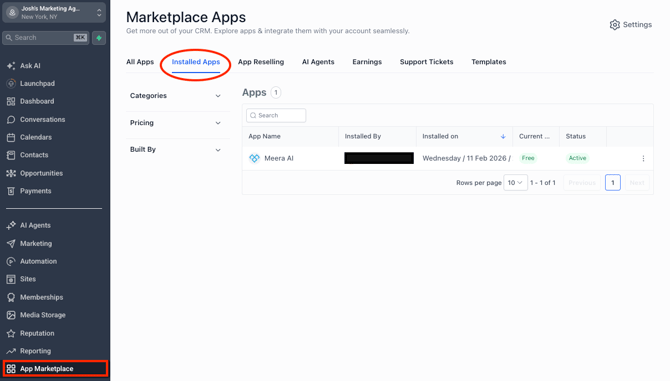
Once you've authorized your GoHighLevel account in Step One above*, you'll see the Meera app installed in your GHL instance as shown below. This will give you access to Meera workflow actions.
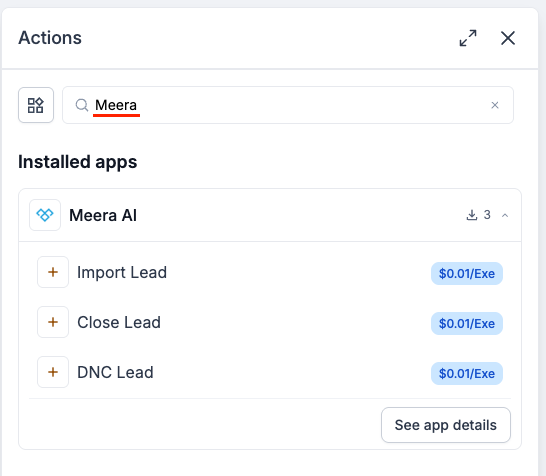
* Note: if you prefer to only use GoHighLevel Workflows for your integration with Meera, you can simply complete the authorization step and then exit out of the configuration wizard - Navigate to Automation > Workflows and then create a new workflow, or add Meera to one of your existing Workflows. When defining an Action, you can simply search for the Meera app as shown:
Please note that depending on your GoHighLevel plan, you may incur a cost for invoking any Marketplace apps, such as ours, in your Workflows. GHL has more info on this here. - Starting with Import Lead, you'll have a number of different fields to fill out:
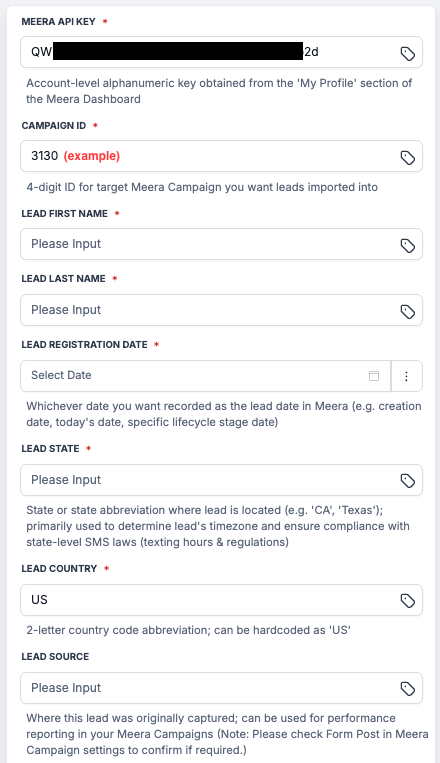
For any fields (e.g. Country) where you want all Leads to have the same value, you can simply type that value in. Otherwise, you'll likely want to map each field to a dynamic value, such as in the example below :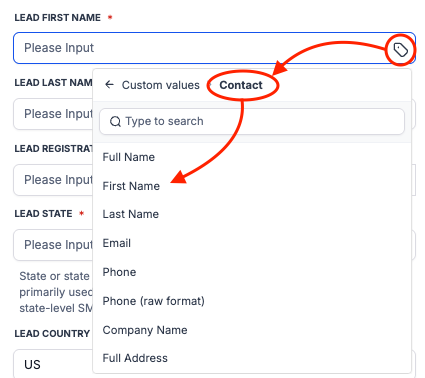
Note: for certain fields with designated formatting (such as dates) you'll need to click on the 3 dots on the far right to switch to Dynamic mapping: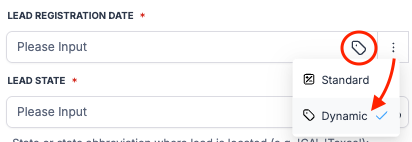
- Lastly, you'll just need to confirm the selected Campaign ID and also populate any special custom fields that have been set up for this Campaign:
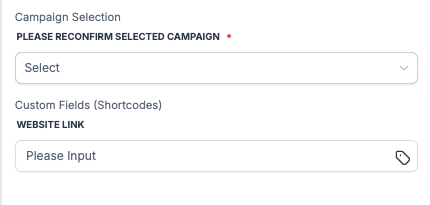
In this section, you'll also see the full Meera Campaign name so you can confirm that you've selected the right one. If there are any errors (such as incorrect API key) they'll also appear here. - Moving on to Close Lead, this action is much simpler; you don't need to specify any lead-specific fields, since GoHighLevel will pass us the contact ID behind the scenes so we can locate and close that lead:
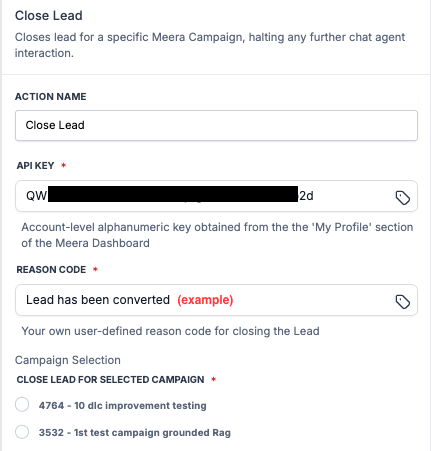
However, since lead closure happens on a per-campaign basis, you'll just need to pick which Campaign this should apply to. - Lastly, with DNC Lead, the only required input is the API key:
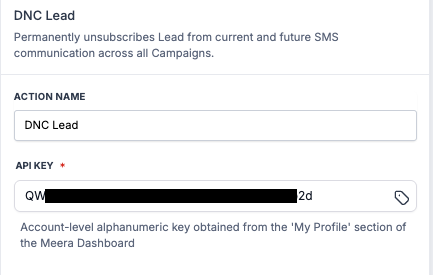
This action is permanent across all Campaigns, and just like the Close Lead action, GHL already sends us the contact ID, so you don't need to specify anything else. - Publish your flow! Once active, your Workflows will call our system following the flow you've designed. 😀
Need Help?
If you need further assistance or have any additional questions, please get in touch with us at help@meera.a