How the Call Transfer Works
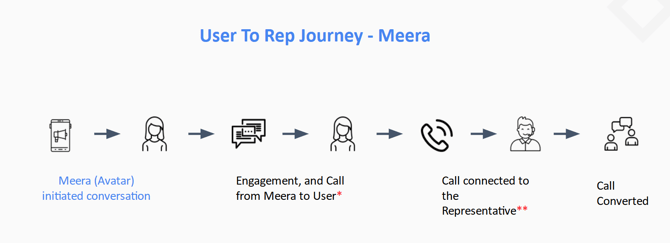
The transfer is triggered once a lead has agreed to speak with a representative. For the user to rep call transfer, Meera first calls the lead to confirm they are available, then dials the representative to connect the two parties.
When a transfer is initiated, the following happens:
-
Meera places a call to the lead (user).
-
When the lead answers, they hear a prompt: "Hello, this is [CompanyName]. Please press any key to connect with the team."
-
The lead presses any key to confirm they are available.
-
Once the lead is confirmed on the line, Meera dials the representative.
-
The representative answers and is connected to the lead.
-
The representative greets the lead and continues the conversation.
Best Practices
For the user to rep call transfer flow the representatives should open the call as outbound, not inbound.
-
When the call connects, greet the lead using their name and reference the program or offer. For example:
"Hi [FirstName] — if you didn't catch the name, ask them to spell it out — thank you for taking the time to chat today. I look forward to helping you with [program/offer name]. Before we begin, could you please spell your full name to ensure I have it correct?" Then continue with your outbound script.
-
Avoid inbound-style greetings such as: "Hi [FirstName], thank you for calling [CompanyName]. This is XYZ — how can I assist you today?"
-
Representatives should also be familiar with the campaign's avatar name, as the lead may have interacted with the virtual agent via text prior to the call and may ask for them by name
Key Terms
-
User Whisper: Heard by the lead when they answer the call. This prompt confirms a live person is on the line and filters out answering machines and voicemails. The wording can be customized or disabled entirely in campaign settings.
-
Rep Whisper: Heard by the representative before the call connects. Includes the lead's name and/or the Meera campaign name, helping the representative locate the lead in the database and have their file ready. This whisper can also be customized or disabled.
-
Avatar Name: The name of the virtual agent used to introduce your company to the lead via Meera's text messaging campaign. For example: "Hi John, this is Mia from C Institute..." — in this case, "Mia" is the avatar name. If you're unsure of your campaign's avatar name, reach out to your CSM.
-
Caller ID: Determines what the representative sees when the call connects — either the lead's phone number or the Meera campaign number, depending on campaign settings. This helps the representative locate the lead in the database
Frequently Asked Questions
Why did I hear a prompt asking me to press a key before being connected?
This prompt is used to confirm that a live person has answered the call, rather than an answering machine or voicemail. It ensures the call is only transferred once a real person is on the line.
Do I have to press a key?
Yes, pressing a key is required to complete the transfer. If no key is pressed, the call will not connect and the lead will not be reached.
Why might the lead mention a name like "Mia" or another agent?
Meera uses a virtual agent, known as an avatar, to introduce your company to the lead via text messages before the call. The lead may be familiar with this name and reference it during the call with your representative.
Can the representative see the leads phone number?
This depends on the campaign settings. The representative will see either the lead's phone number or the Meera campaign number. Contact your CSM to confirm which applies to your account.
If you have any additional questions please send us a quick email to help@meera.ai. We're happy to help!